How to use Advanced Search
The Advanced Search filters are designed to help those who are doing a deep dive into the Carter's collection find art and archives objects using fields in our collection database. Some of the searchable fields may not be self-explanatory so here are some definitions to help:
-
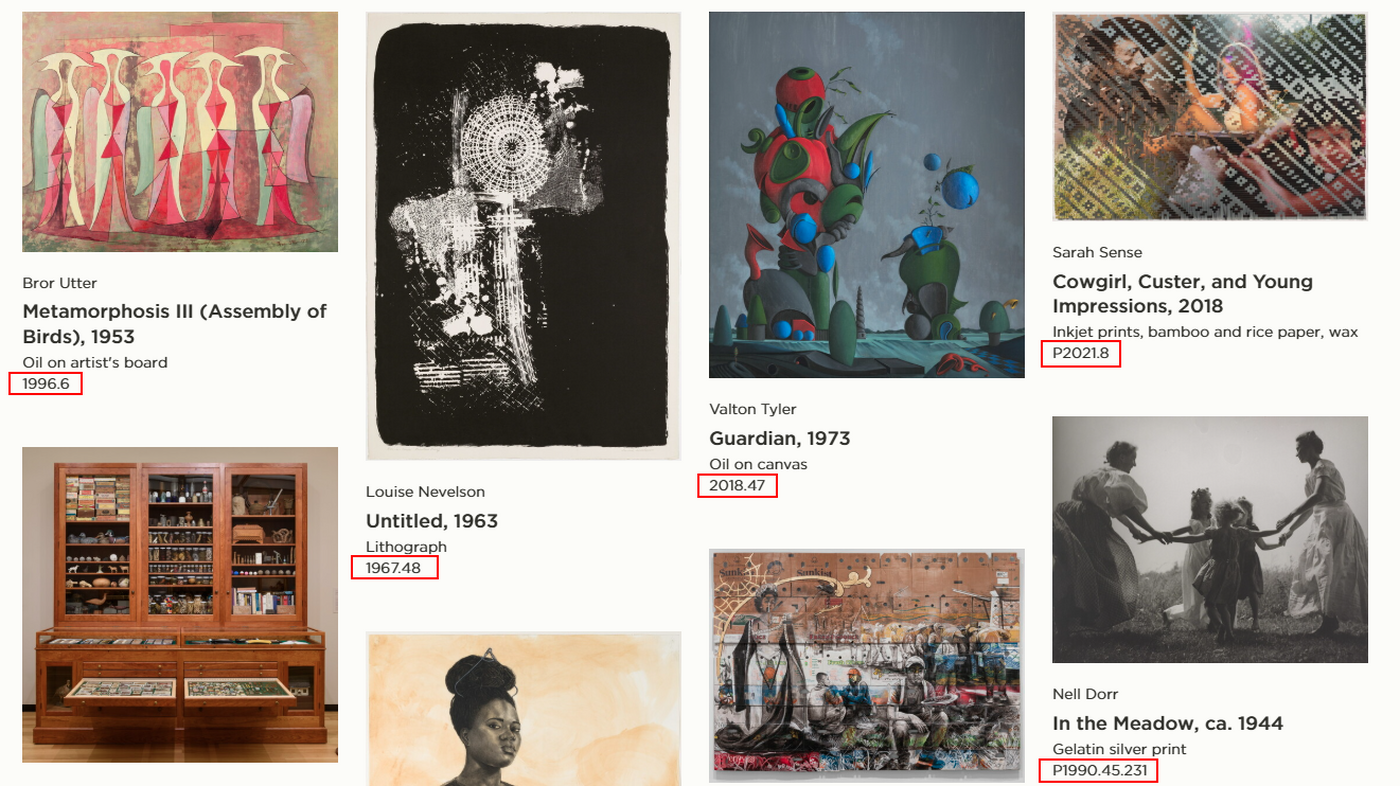
An accession number is the number an art or archive object is assigned when it enters the Carter's collection. It typically includes the year the object entered the collection followed by a number or series of numbers. For artworks, you can view this number on any page showing multiple artworks:
For both art and archive objects, the accession number is also on the individual object pages:
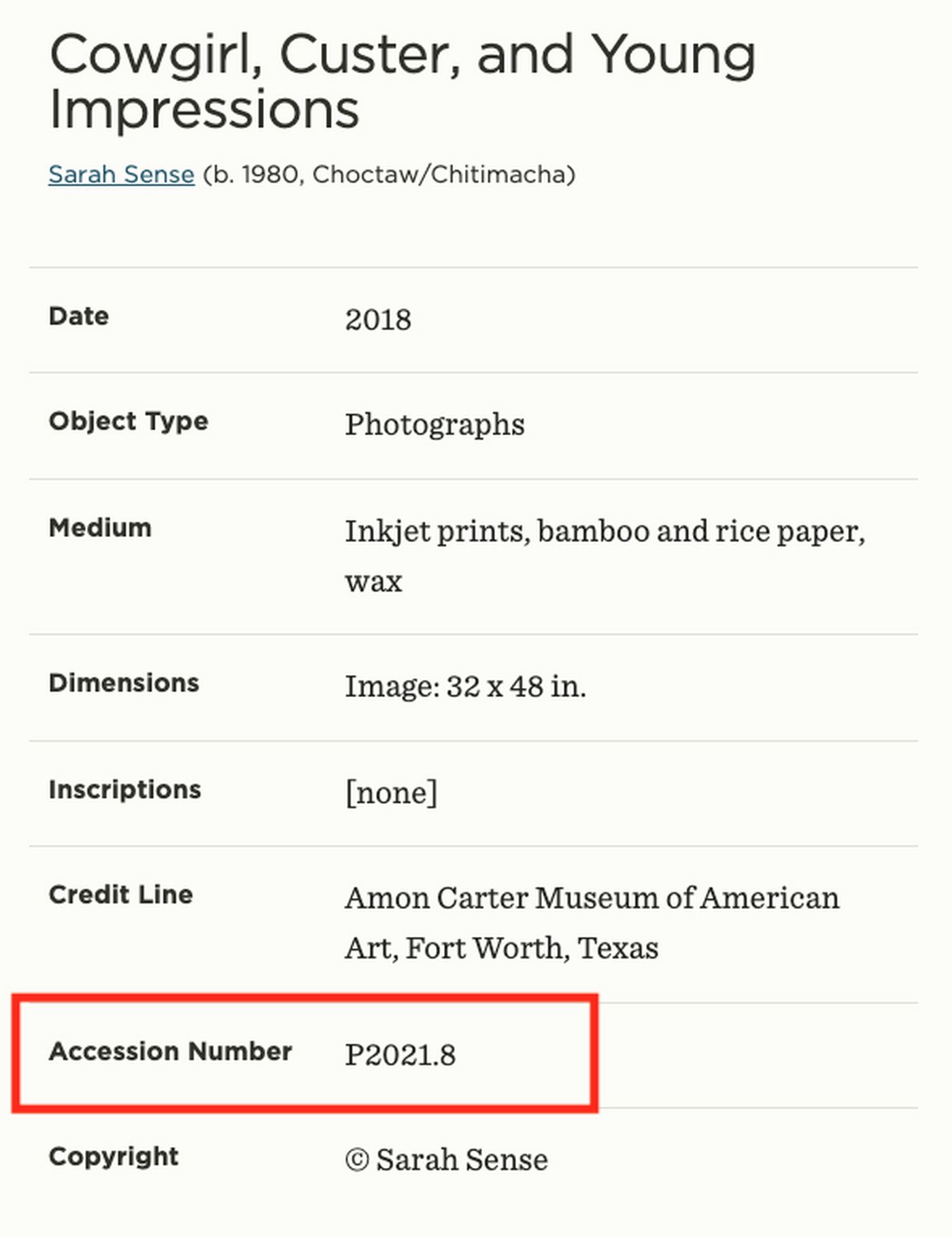
Pro tip! At the Carter, accession numbers that start with P are photographs and accession numbers that start with A are objects in our archives.
-
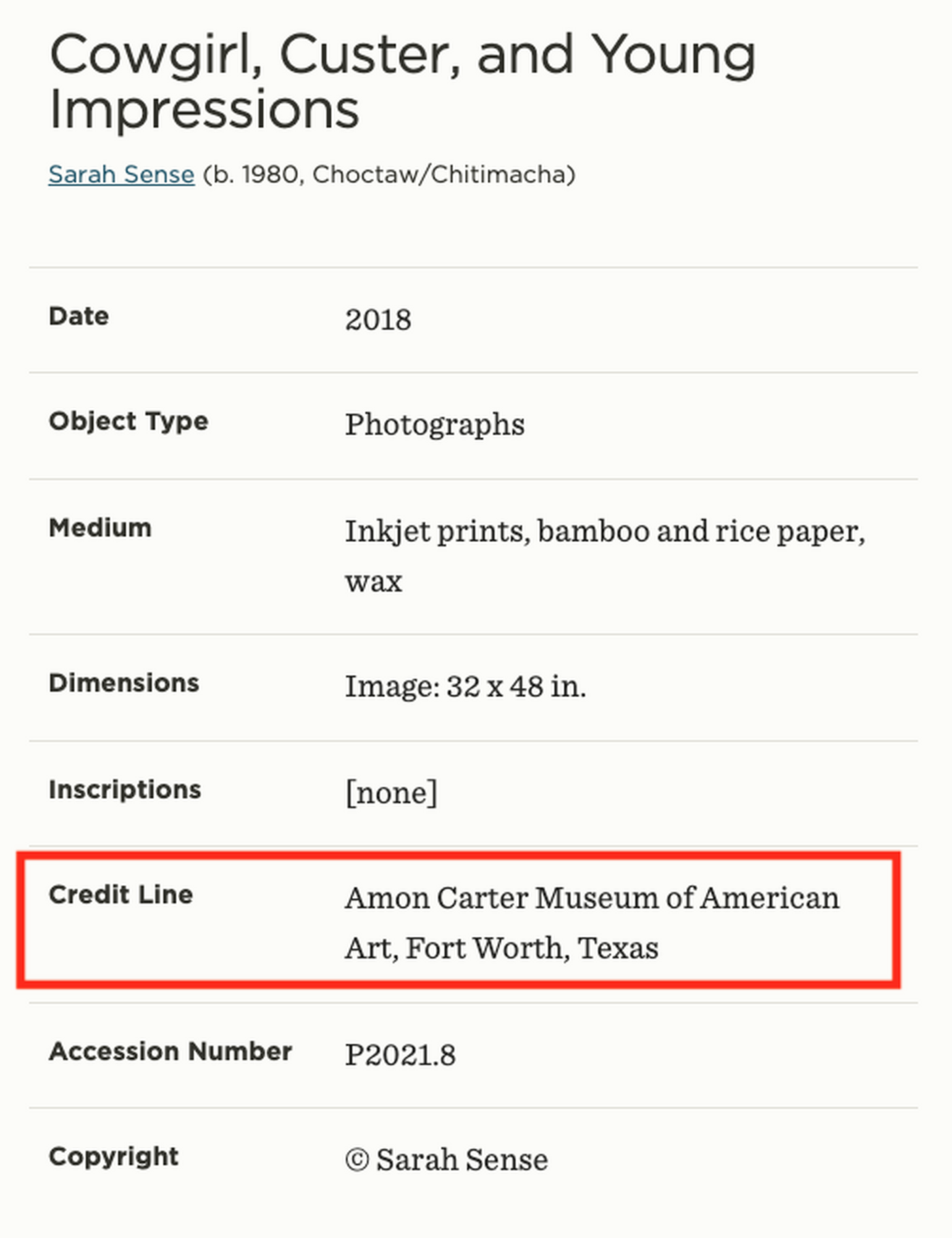
The credit line details who owns the object. This is sometimes different from who owns the copyright to the object.
-
Some objects in the Carter's collection belong to "sub" collections. Sometimes they are collections of objects donated by a person or entity, such as the Fred and Jo Mazzulla Collection. Sometimes they are grouped by a common source, such as the Tamarind Lithography Workshop Collection. If an object is part of a collection, it is listed on the object's page.
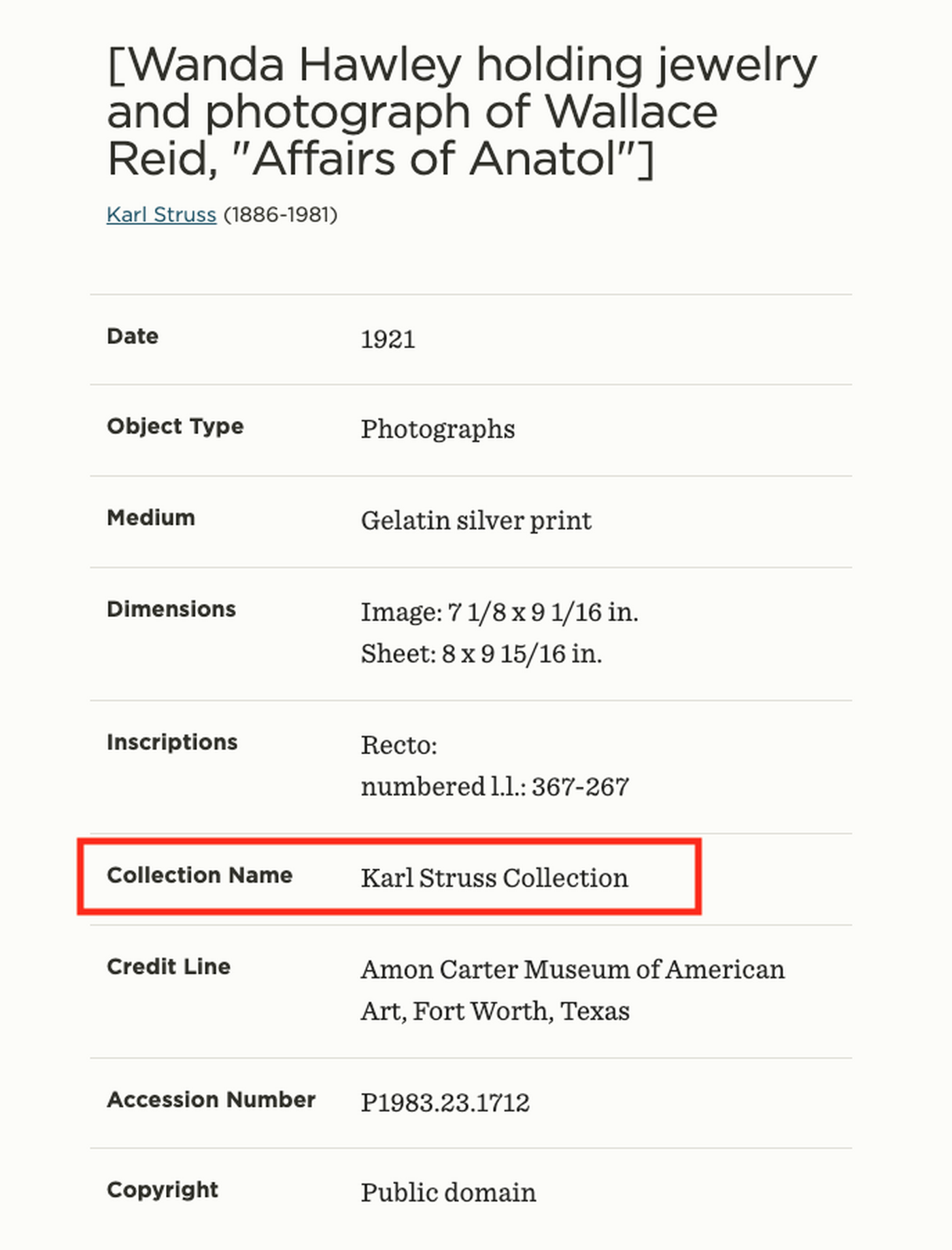
-
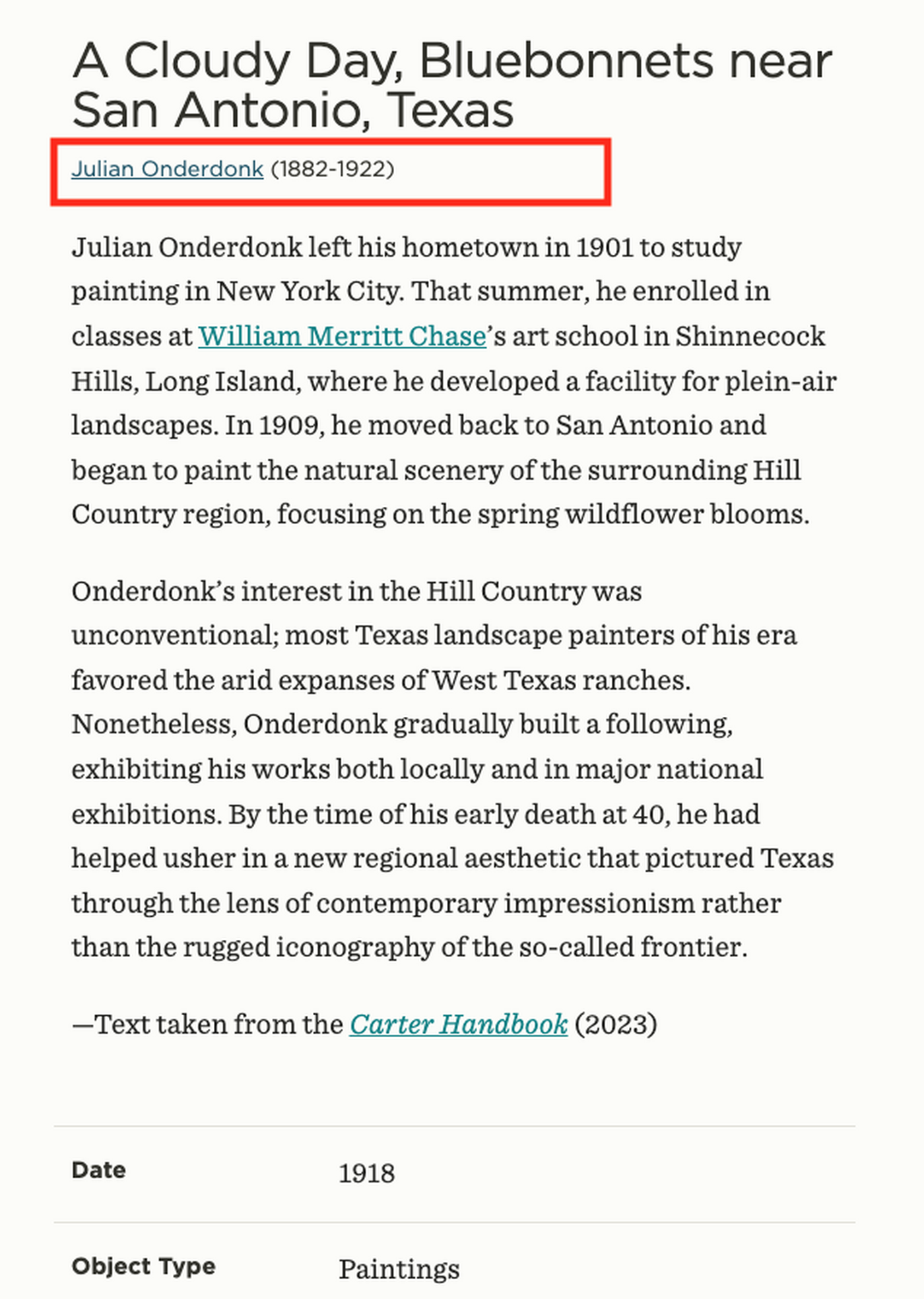
The creator is the name of the artist or maker, if known.
-
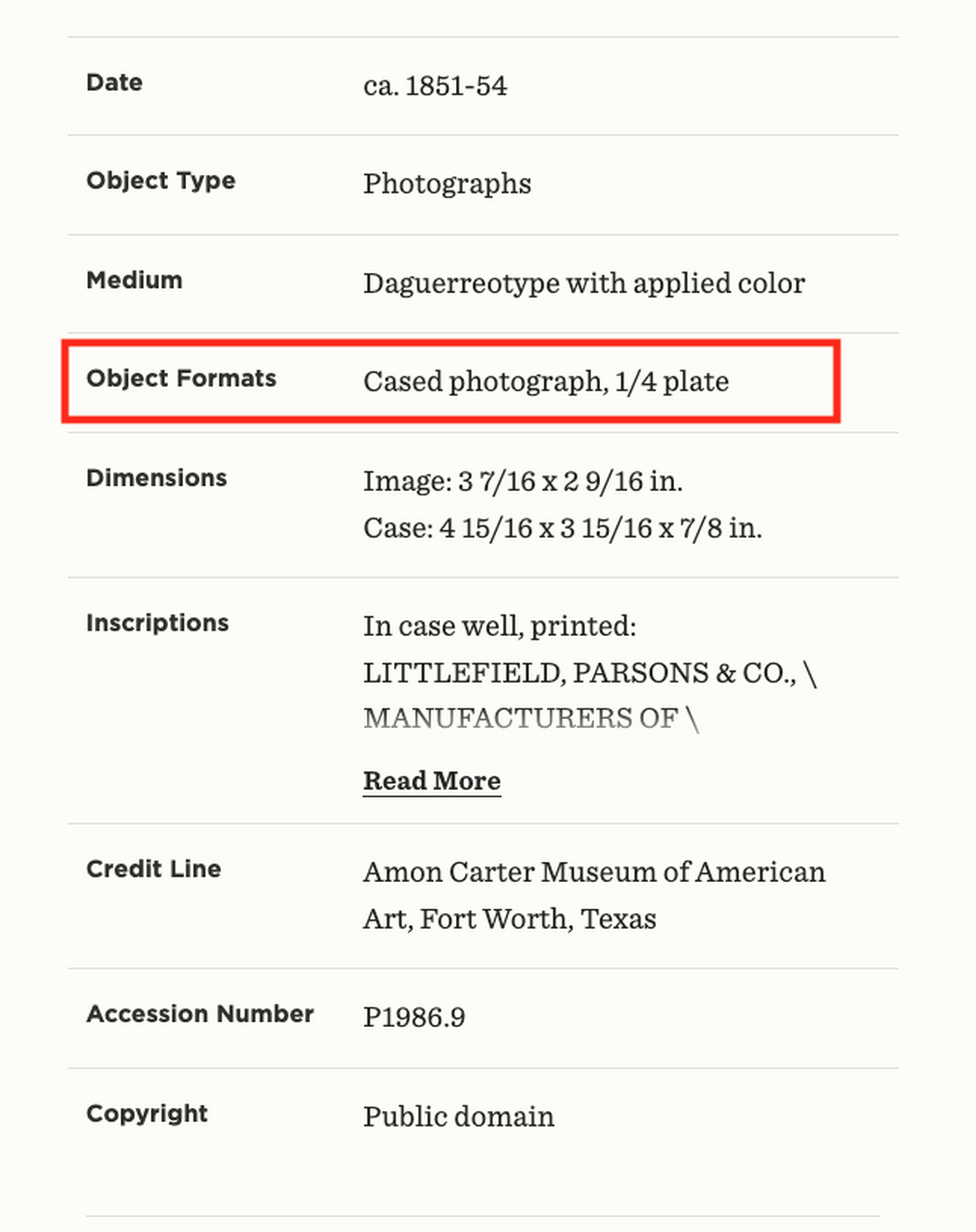
Format describes the specifics of the object type. For example, if an object is a sculpture, format denotes if it is a carving or a cast. If the object is a photograph, the format denotes what sort of photograph. In the example below, it is a quarter-plate photo in a case:
-
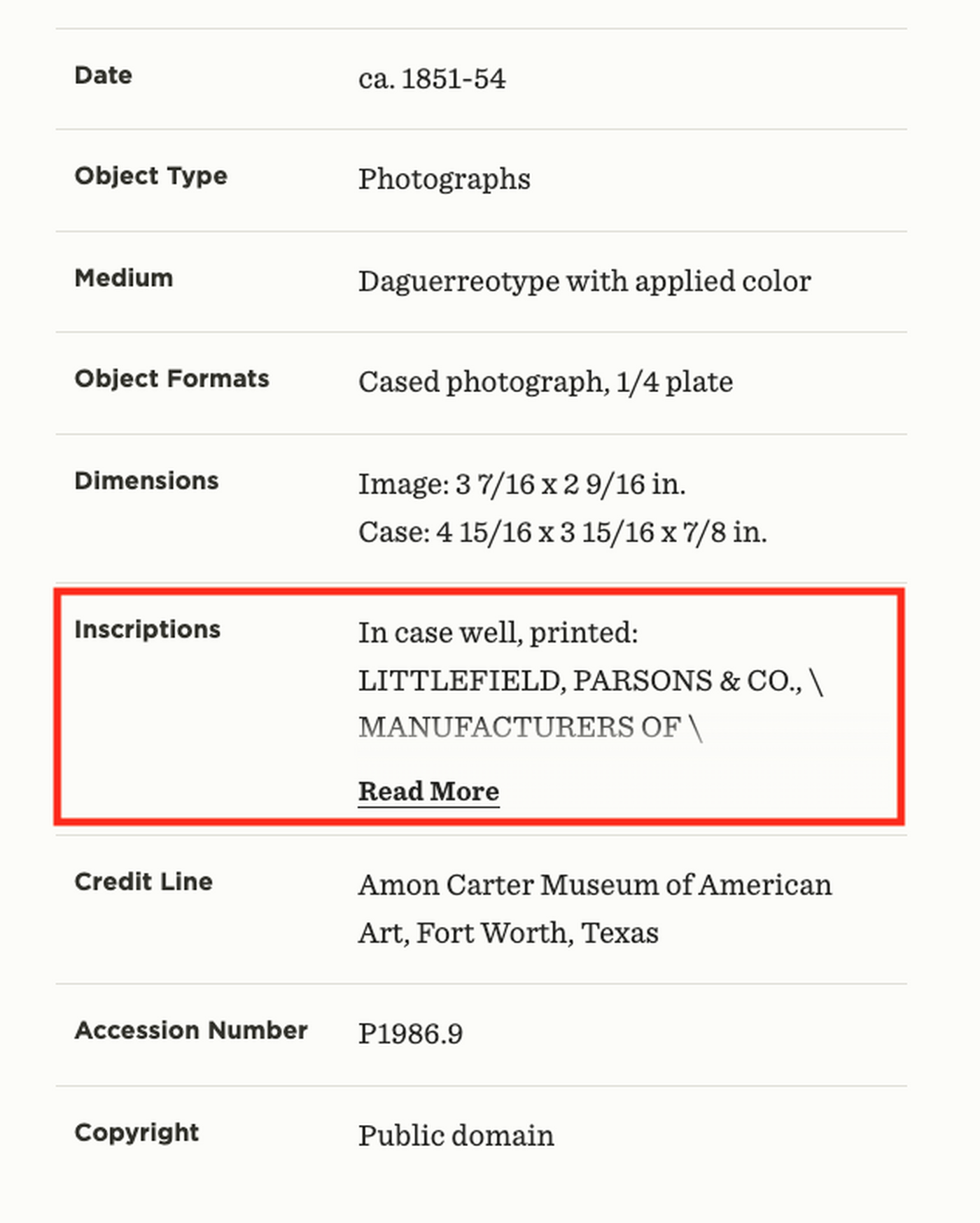
The inscriptions field transcribes any text or markings on the front, or recto, or back, verso, of the object. If the inscription is long, click on the Read More link to read all of it.
-
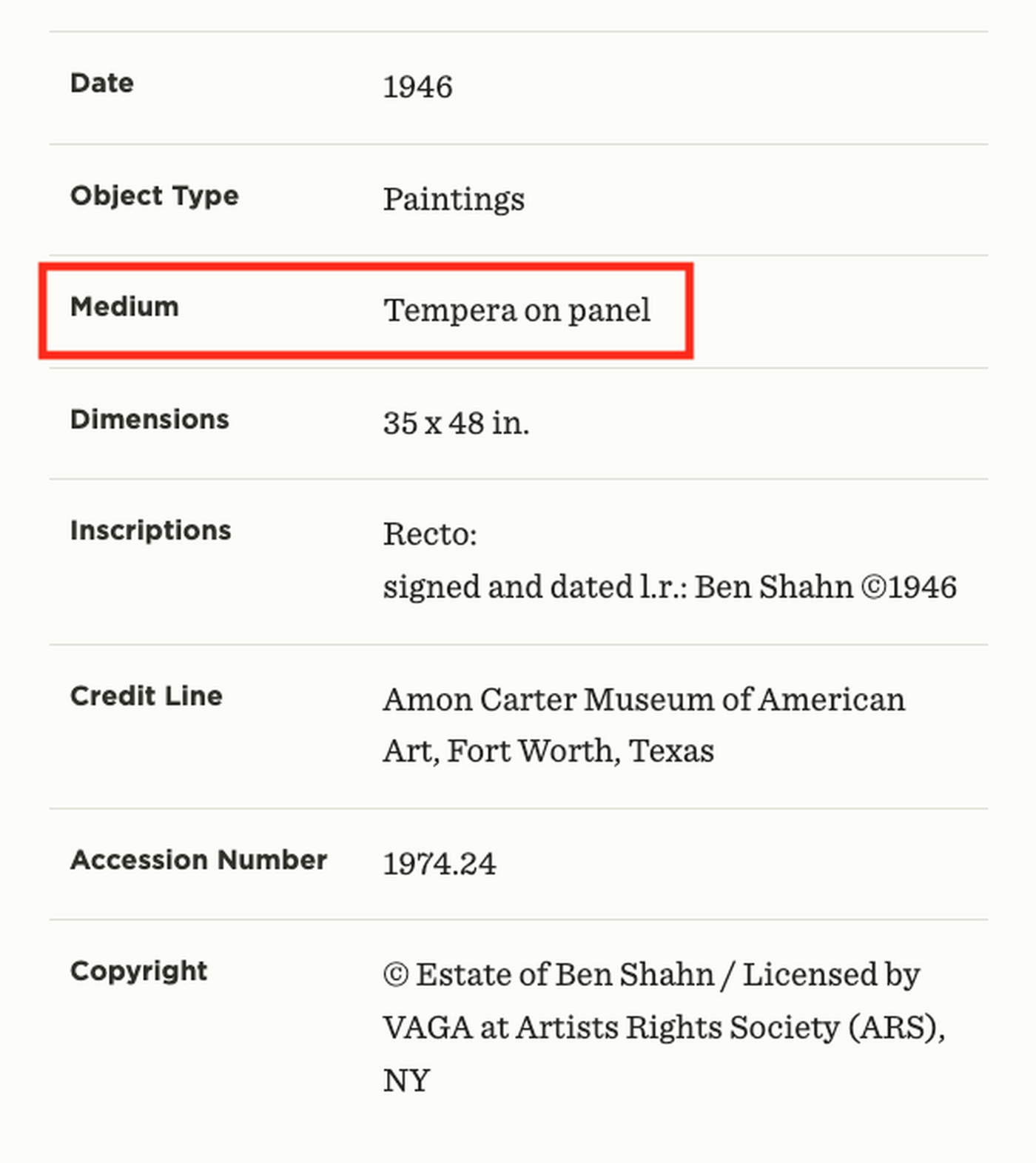
Medium describes the type of material that was used to create the object. If it is a photograph, it describes the type of photograph. In this example, the medium describes the type of painting:
-
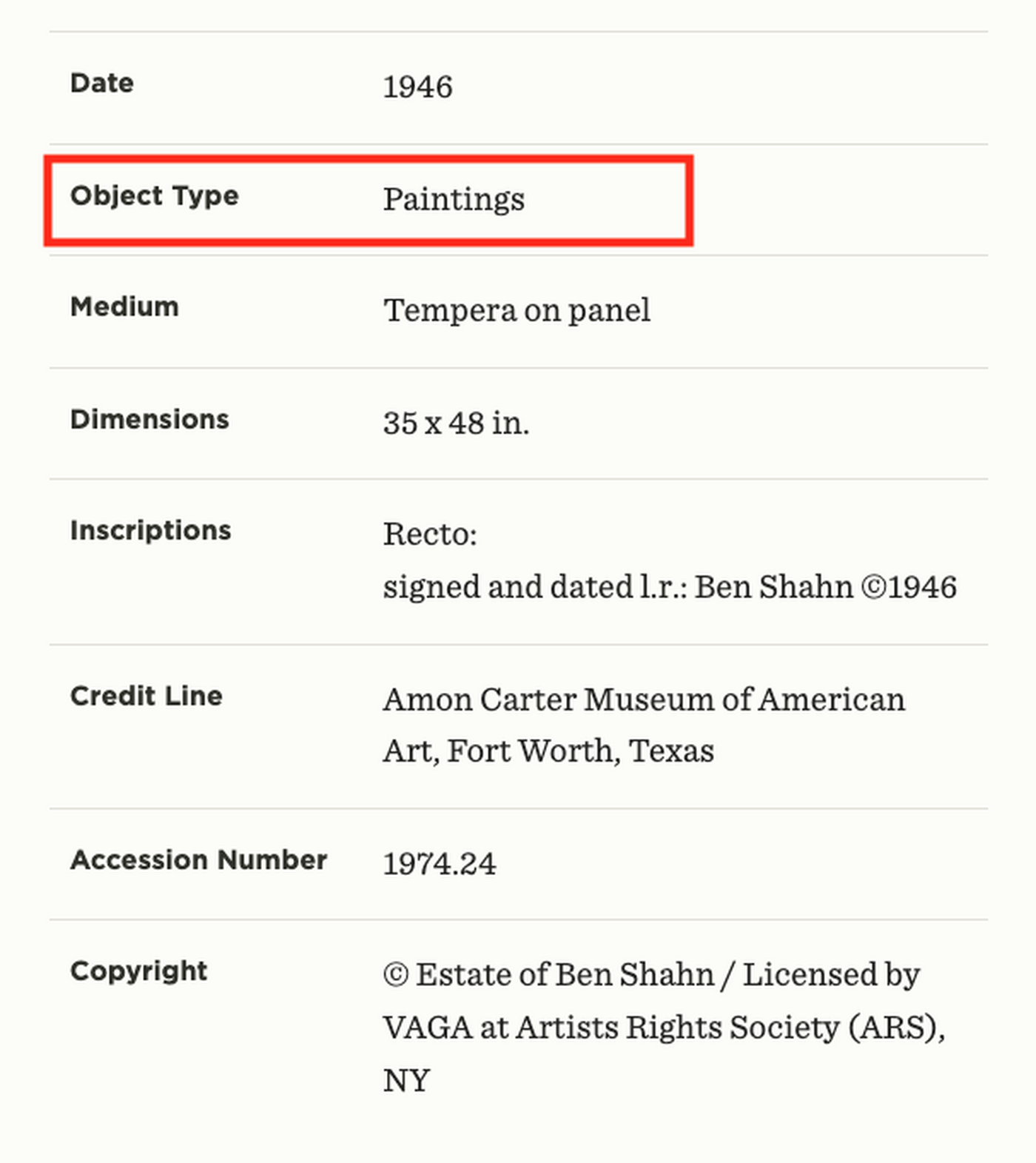
The object type is a generalization of the medium. At the Carter, there are six categories of object types: Drawings & Watercolors, Negatives & Transparencies, Paintings, Photographs, Prints, and Sculptures. In this example, the medium is tempera on panel, which is a type of painting.
-
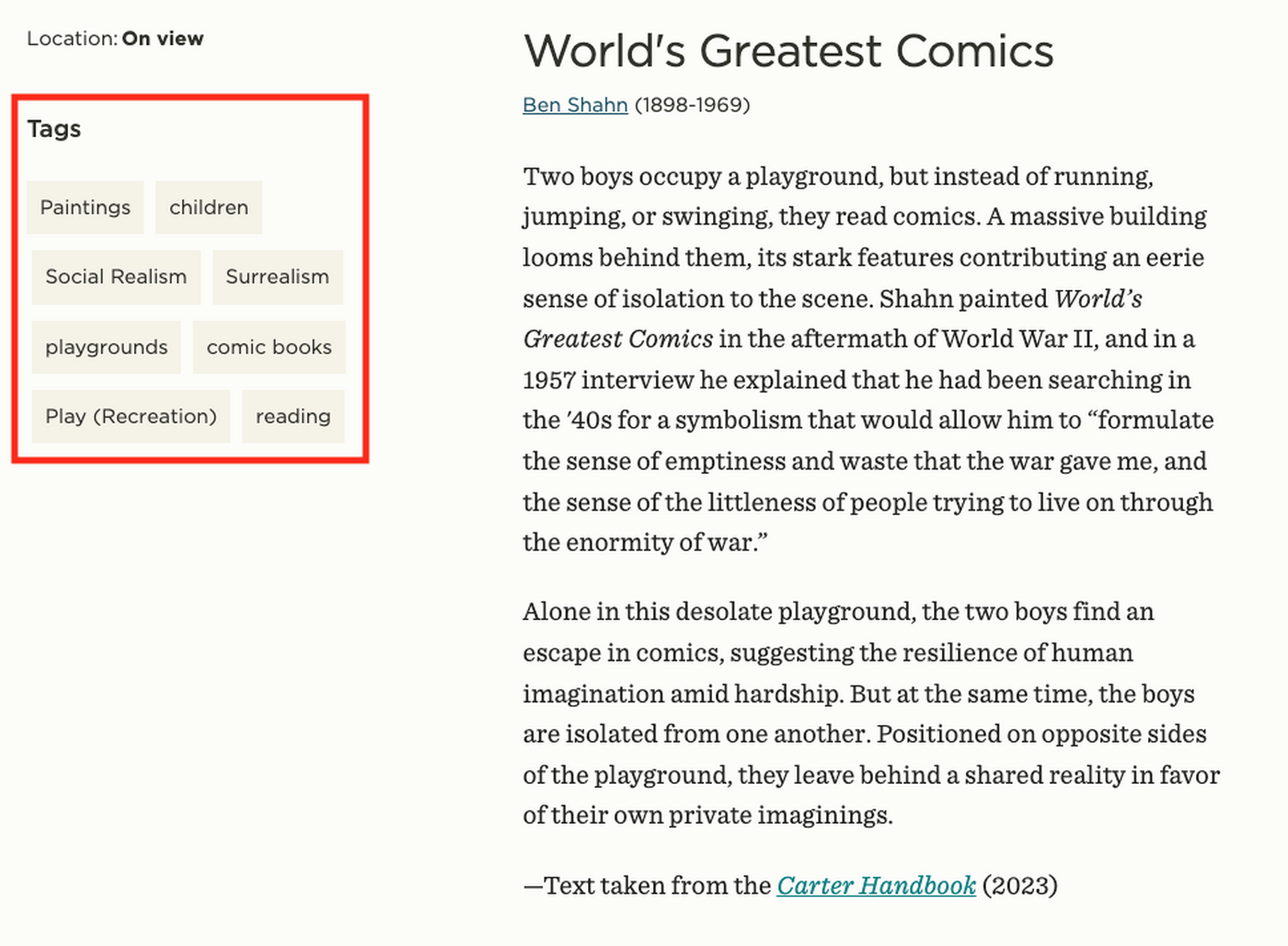
Subject classifications are the keywords the Carter assigns to objects to help make them more findable. They are displayed on object pages in gray boxes, each of which is clickable to show more objects with that keyword.
-
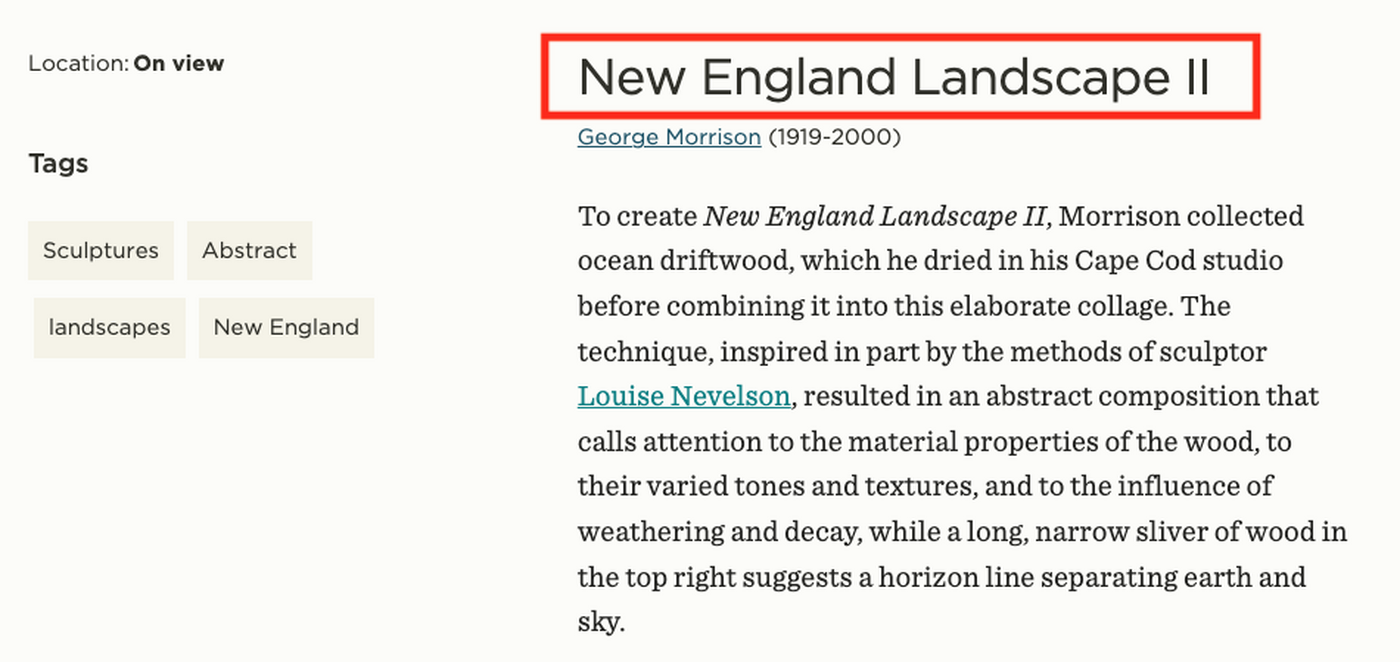
Title is the name given to the object by either its maker or, if the title is in brackets, by the Carter if the title is unknown. It is in bold at the top of object pages.
Start your search
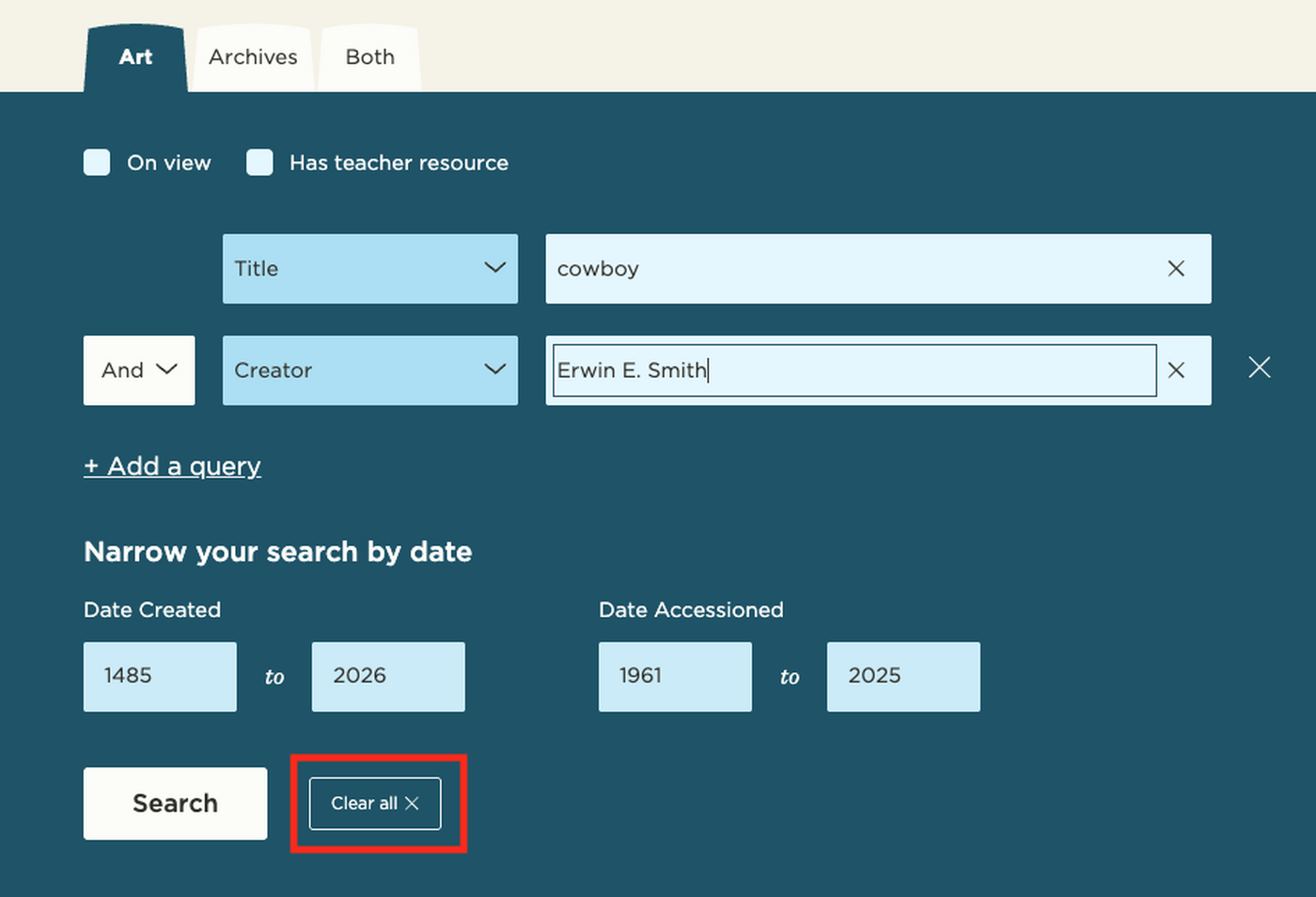
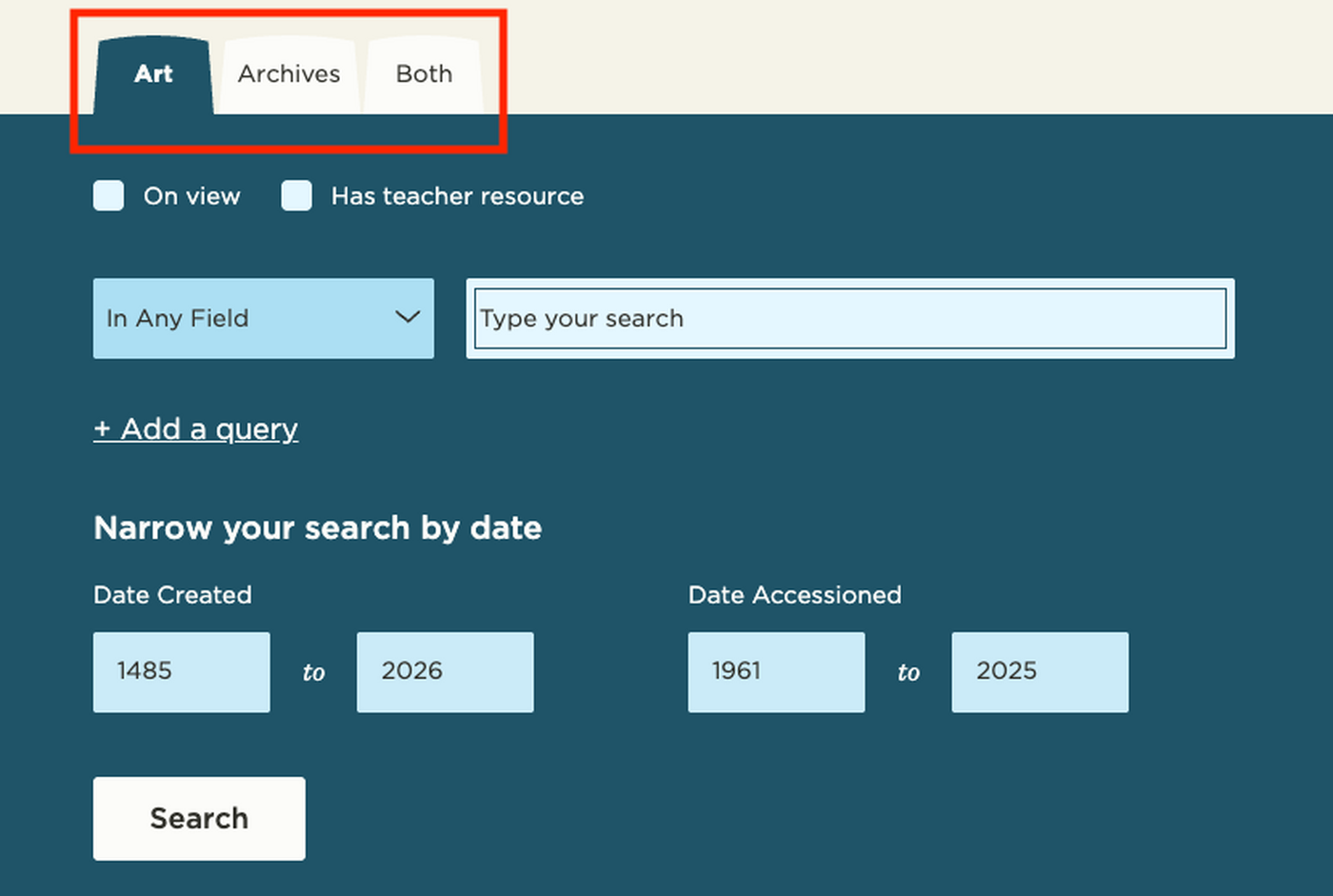
1. Choose what you want to search by selecting from one of these tabs: the Carter’s art collection, the Carter’s archives, or both.
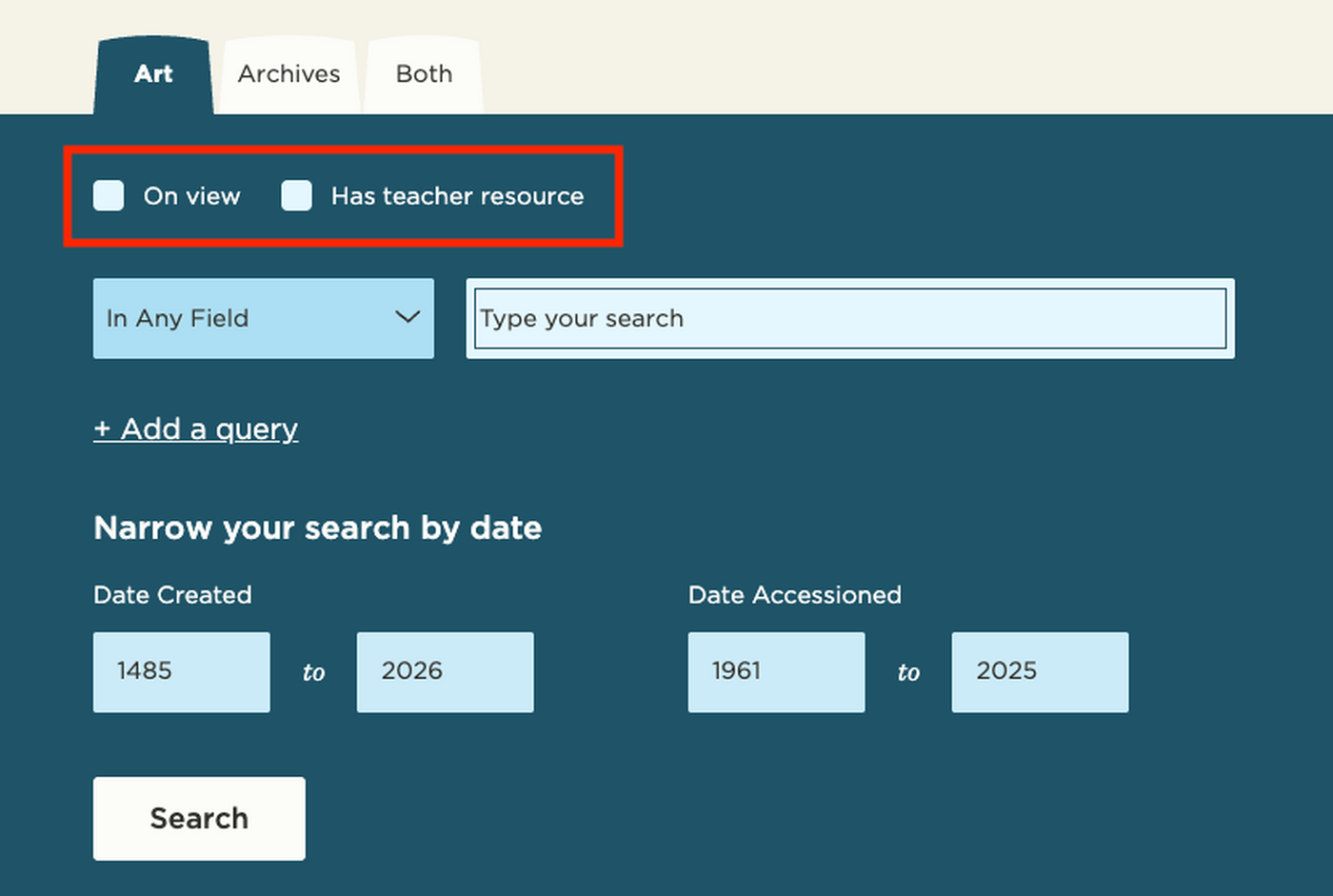
2. If you want to see only objects that are on view or that have teacher resources, check the appropriate box.
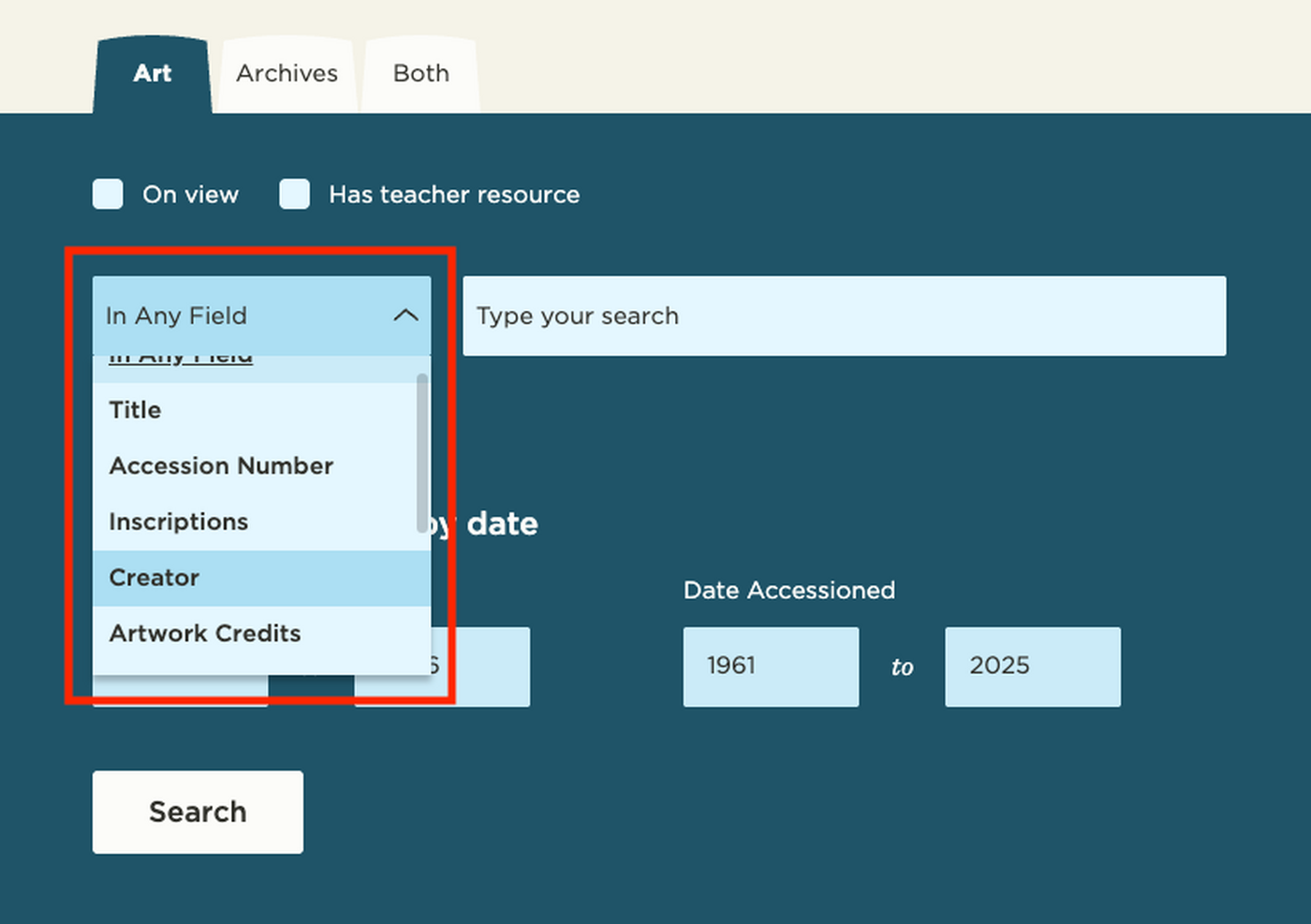
3. In the dropdown, choose a field you would like to search. Choose “Any Field” if you want to search all fields.
4. Some field types allow you to type a search term: In Any Field, Title, Accession Number, Inscriptions, Creator, and Artwork Credits.
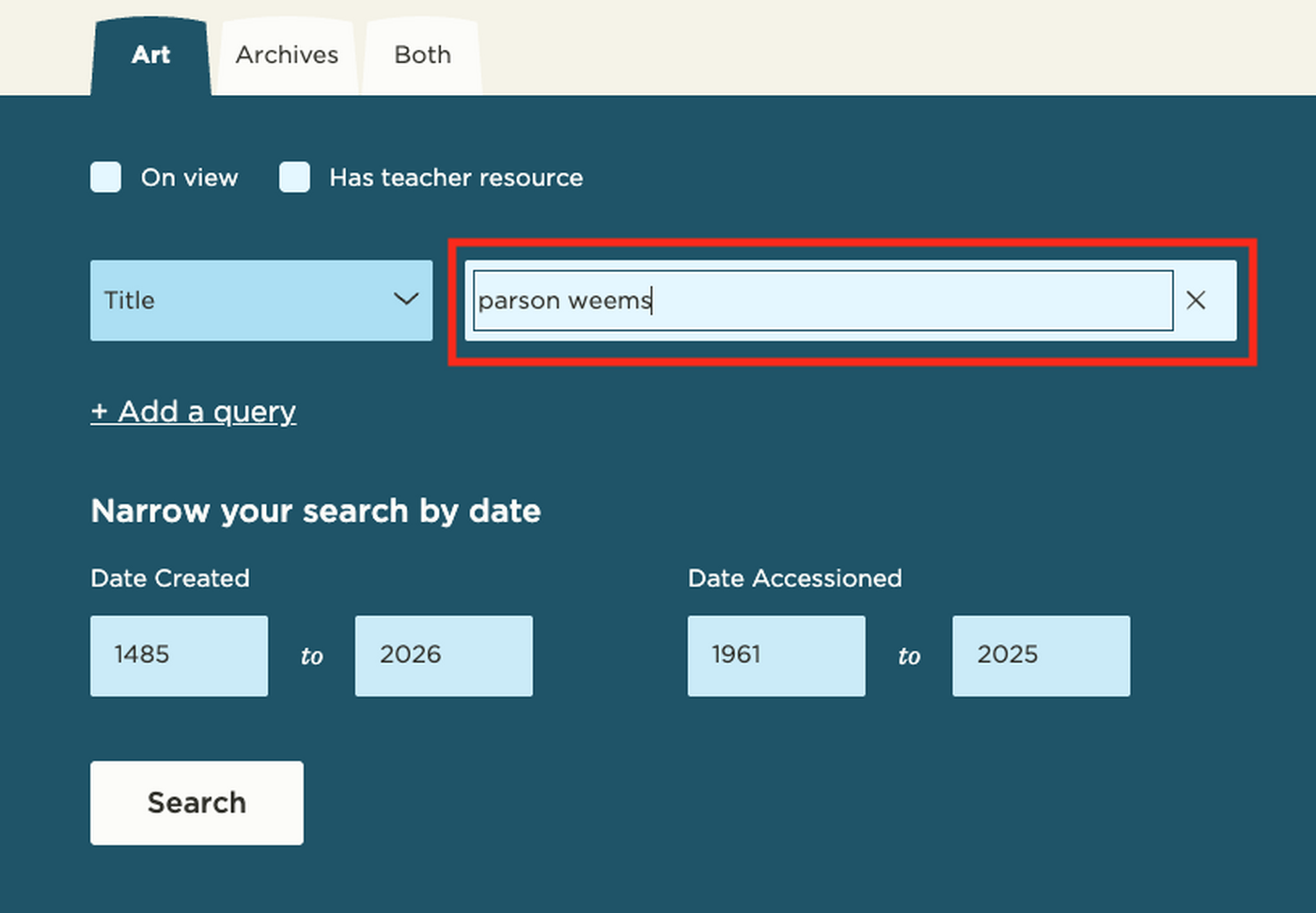
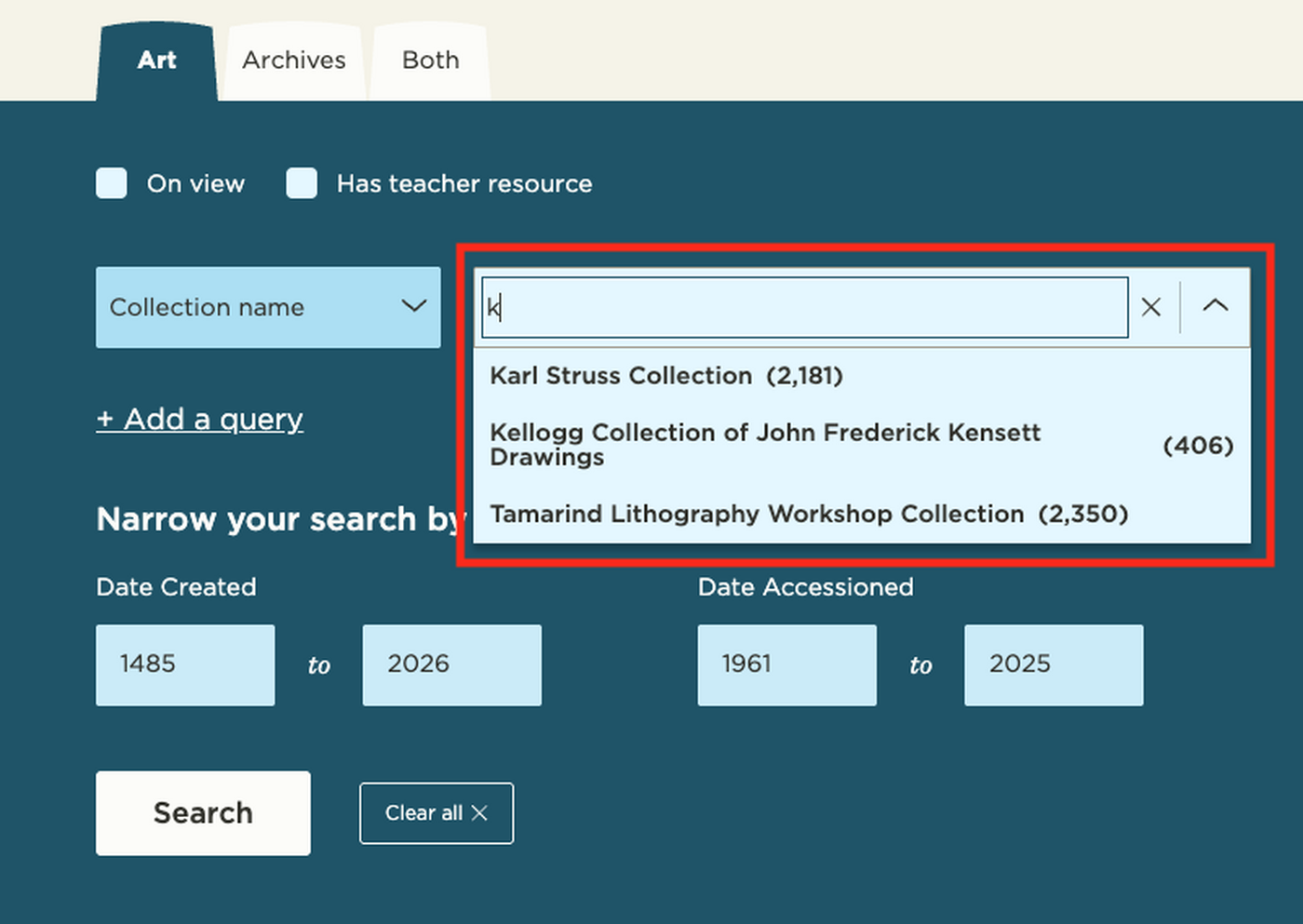
Other fields provide you with a list of terms to select from: Collection Name, Object Type, Format, Subject Classification, and Medium.
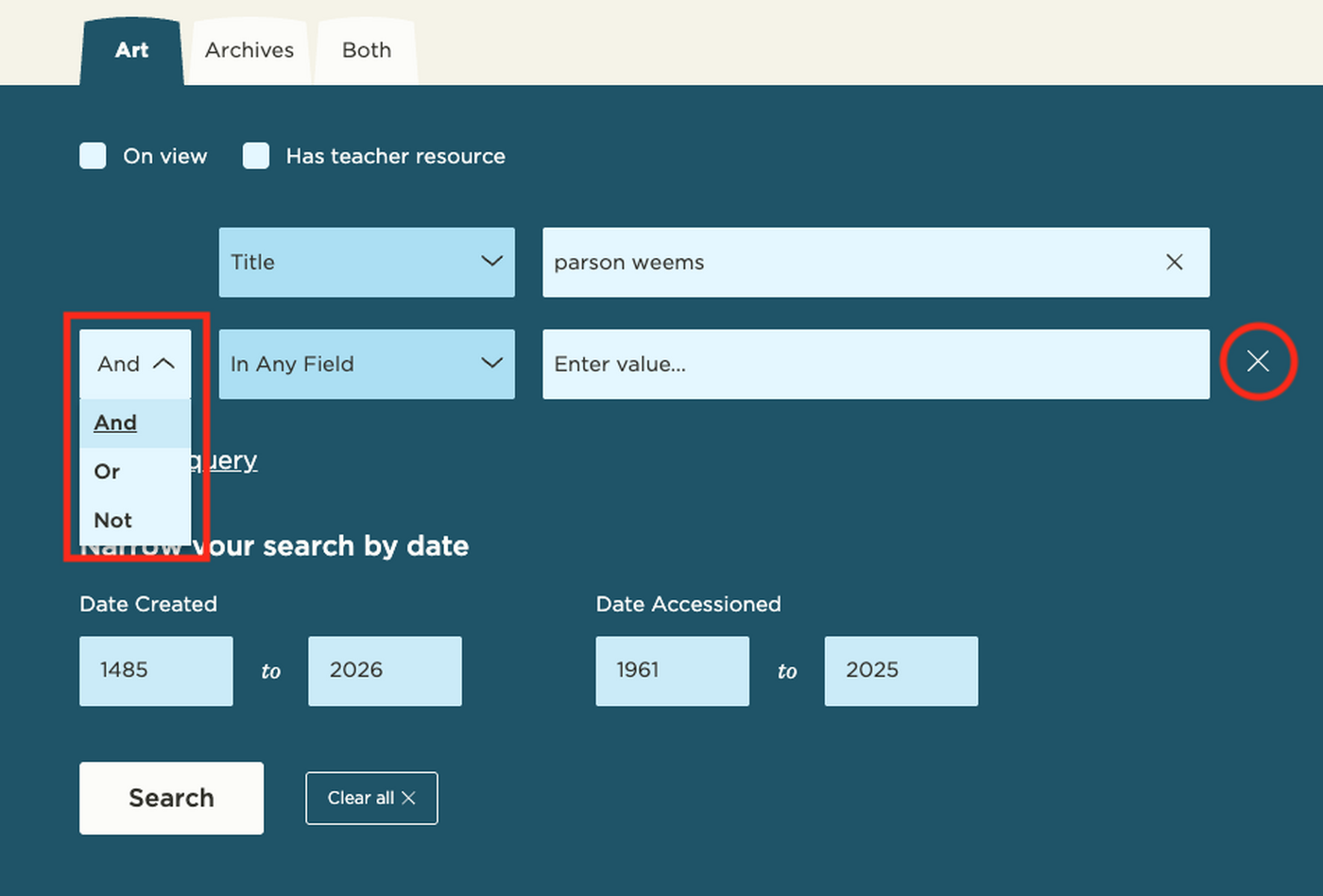
5. To add more search parameters, click “Add a query.” You have the option to select, AND, OR, and NOT operators. To remove a query, click the “X.”
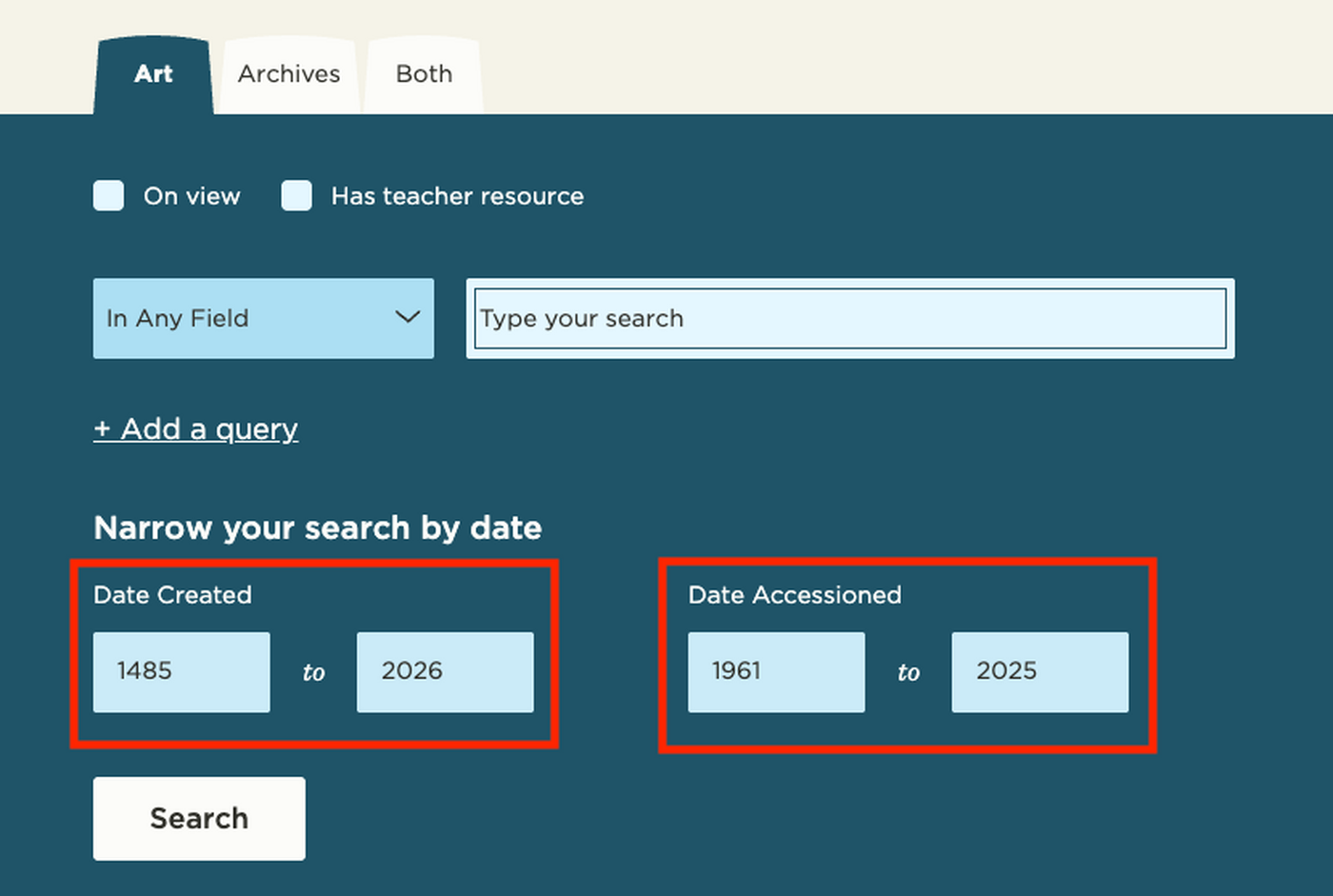
6. You can also narrow your search to the date an object was created and/or the date it was accessioned into the Carter’s collection.
7. When you have your filters set up the way you’d like them, click Search. If the results aren’t quite what you were looking for, adjust your filters and try again.
8. To clear your filters, click the “Clear all” button next to Search.